Installing PennMUSH as a service
What is a service?
Services are programs that are automatically started up as Windows NT boots, they do not wait for someone to log on.
For examples of existing services on your PC, open the Control Panel, and then open the "Services" icon (there is an example below).
Why install PennMUSH as a service?
- The MUSH will start automatically as soon as the PC boots, it does not need someone to log onto an account.
- You can leave the MUSH running even if no-one is logged on. This is especially useful if you are planning to run 24 hours a day, but want to have some security protecting you from people who might access the PC in your absence.
- The MUSH closes down in an orderly way if the PC is shut down (assuming that you do a proper Windows NT shutdown, and don't just turn off the power switch).
Manual or automatic start
When you first install PennMUSH as a service it is marked as "automatic start" which means that it will start up automatically every time you boot the PC. However, you can use the "Services" Control Panel to make the startup manual, and then only start it when desired.

Example of the services control panel.
Access rights
If you get an error message "Access is denied" when attempting to install the service, you will need to either:
- Log out, and log back in as Administrator; or
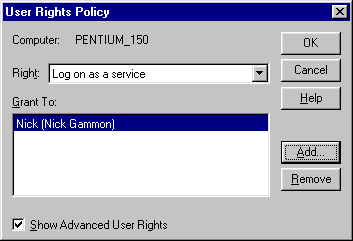
- Use the "User Manager for Domains" (in Adminstrative Tools) to give
your account the <b>advanced</b> user right of "Log on as
a service" (see example below).
Installing PennMUSH as a service
- First, test it stand-alone. This is to check that all files are being found,
and that there are no error messages on startup. To do this, start a DOS window
(Command Prompt), change to the MUSH directory, and type:
pennmush /run - Log into the MUSH using Telnet or a MUSH client program, and check that all is OK.
- Shut the MUSH down by entering @shutdown as a wizard, or pressing Ctrl-C in the DOS window.
- Install the service by typing:
pennmush /installYou should get the message "Service successfully installed"
- Start the service by typing:
pennmush /startYou should get the message "Start request sent to service"
- After waiting about 15 seconds for the service to start up, test it by logging into the MUSH by using Telnet or your MUSH client.
- That's it!
Starting the service
You only need to start the service manually:
- The first time you install it; or
- If you have shut the MUSH down (e.g. by doing a @shutdown)
To start the service manually type (at a DOS prompt):
pennmush /start
You should get the message "Start request sent to service"
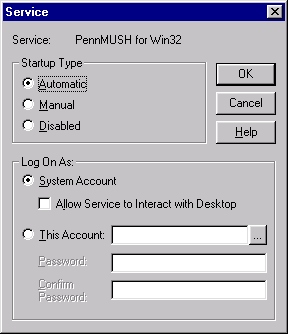
If you want to always start the service manually:
- Go to the Control Panel
- Open the "Services" icon
- Scroll down until you have found "PennMUSH for Win32"
- Click on "PennMUSH for Win32" so that it is selected (highlighted)
- Click on "Startup"
- Click on "Manual"
Stopping the service
You can stop the service (i.e. the MUSH) by:
- Doing a @shutdown as a wizard character; or
- Going to the DOS prompt (ie. Open a "Command Prompt" window) and
type:
pennmush /stop
Pausing the service
You can pause the service (I'm not sure how useful this is) by clicking on "Pause" in the "Services" Control Panel when you have "PennMUSH" highlighted. To resume it, click on "Continue".
A paused service is halted, but will resume when you click on Continue. You might do this to see what effect the MUSH has on the rest of your PC by pausing it briefly and seeing if that has any effect on other programs.
Removing the service
To permanently de-install the service, start a DOS window (Command Prompt), change to the MUSH directory, and type:
pennmush /remove
Note that you cannot remove the service while it is running. You will have to shut the MUSH down first (ie. type: pennmush /stop).
Finding the status of the service
To find if the MUSH service is running or not, type:
pennmush /status
Game output
The output from the game (initial information, connects etc.) are written to the file LOG\GAME.LOG if the MUSH is running as a service. You can use NotePad or another word processor to inspect this file at any time. This might be useful if the MUSH has crashed or not start up correctly.
Help on the various options
At a DOS prompt, type:
pennmush /help
You should see the following display:
Usage is :-
 PennMUSH           - runs as a service, or stand-alone
 PennMUSH /run      - runs stand-alone
 PennMUSH /start    - starts this service
 PennMUSH /stop     - stops this service
 PennMUSH /install  - installs this service
 PennMUSH /remove   - removes (un-installs) this service
 PennMUSH /status   - displays the status of this service
 PennMUSH /help     - displays this information
Windows 95
Note that you cannot run the MUSH as a service under Windows 95. This operating system does not support services, and does not have a "Services" item in the Control Panel.
You can only install the MUSH as a service under Windows NT or Windows NT Server.
Network drives
Experience has shown that you cannot successfully install the MUSH as a service from a network drive. You must install from a local drive. e.g. C:\MUSH , not N:\MUSH
Moving the MUSH
If you move or rename the directory containing the MUSH you will have to remove the service and reinstall it. This is because the full pathname to PENNMUSH.EXE is stored by the system at installation time.
Shutting down the system
Somewhat to my surprise, it seems that shutting down Windows NT does not automatically send a "stop" message to all running services. In order to work around this (so that the database is saved) I have put code in to detect a shutdown. However, for safety's sake, you may wish to do one of the following prior to shutting down your PC:
- Log in as a wizard, and do a "@shutdown"; OR
- Use a DOS window, and type: "pennmush /stop"; OR
- Use the"Services" icon in the Control Panel to "stop" thePennmush service; OR
- Set up a shortcut which runs:
(and double-click on that shortcut before shutting down the system).pennmush /stop
Having done one of the above, wait a few seconds (or minutes if you have a huge database), before shutting down the PC itself.
Making the MUSH stop after typing "/stop"
If there is no activity on the MUSH then it might not detect the "stop" command. To fix this, log on using Telnet or your client program. If you have issued a "stop" command then this will cause the MUSH to close down immediately.